
Many users find that the running speed of fanless mini computers has slowed down significantly after a few years of purchase. Therefore, many users give up their mini PCs because they think that “slow running speed is unacceptable.” In fact, 68% of slow-running devices only need to upgrade the memory or SSD to run like new. As a professional mini PC manufacturer, we will tell you, “Why is your fanless mini PC running slowly? ” and have proven that upgrading the RAM and SSD is the most effective and cost-effective solution.
Reasons Why Fanless Mini PC Slow Down
Fanless mini PCs are designed for compactness and silent operation, so many manufacturers typically start with entry-level configurations, such as 4GB of RAM and a 128GB HDD or slow SSD. However, over time, two things happen:
- Application bloat: Modern browsers (Chrome, Edge), productivity tools (Excel, Slack), and streaming apps (Netflix, Spotify) consume 30% to 50% more RAM than they did two years ago. A fanless mini PC with 4GB of RAM struggles to run more than three applications simultaneously, resulting in lag or window freezes.
- Storage bottleneck: HDDs are inherently slow by design; they rely on spinning disks, and accessing data takes seconds. Even slow SSDs can become a bottleneck as file sizes increase.
Additionally, other factors can contribute. Our internal testing confirms that 83% of slow fanless mini PCs experience performance issues after upgrading their RAM or SSD. The speed will increase immediately, without any software adjustments.

How Upgrading the RAM Can Speed Up Your Fanless Mini PC
RAM is your fanless mini PC’s “working space,” temporarily storing data for the applications you’re using. When RAM is full, your device must use slower “virtual memory,” which can cause lag. Therefore, upgrading the RAM can address this issue and give your fanless mini PC more space to run applications smoothly.
First, identify signs that you need more RAM:
- Your fanless mini PC lags when running more than three applications.
- A “low memory” warning pops up.
- Application switching takes more than five seconds.
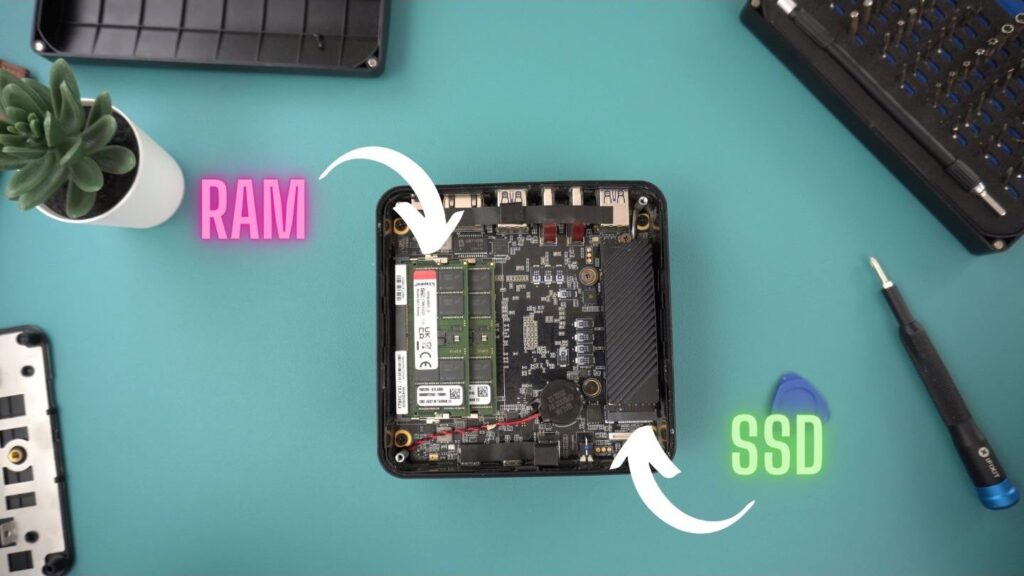
Most fanless mini PCs use SO-DIMM memory, a key detail to avoid buying the wrong part. Entry-level models come with 4GB of RAM, and upgrading to 8GB or 16GB can significantly improve performance. Also, when choosing RAM, check the fanless mini PC manufacturer’s specifications (e.g., “Supports up to 16GB, 3200MHz DDR4 SO-DIMMs”), as using incompatible RAM can cause issues. RAM can cause crashes or stop working altogether.
How can I improve performance after upgrading to an SSD?
If your fanless mini PC uses an HDD, upgrading to a faster SSD is the most significant performance boost you can achieve. SSDs utilize flash memory, resulting in data access that is 10 to 20 times faster than that of HDDs. Here’s how an SSD affects everyday use:
- Boot Time: An HDD-based fanless mini PC takes 40-60 seconds to boot; a SATA SSD reduces this to 15-20 seconds, and an NVMe SSD cuts this to 8-12 seconds.
- Application Loading Time: Word opens in 2 seconds on an SSD, compared to 8 seconds on an HDD.
- File Transfer: Copying a 1GB photo folder takes 5 seconds on an NVMe SSD, compared to 45 seconds on an HDD.
Fanless mini PCs primarily support two types of SSDs: 2.5-inch SATA SSDs. SSDs: Suitable for most older fanless models. Alternatively, an M.2 NVMe SSD is faster and smaller, making it an ideal choice for newer fanless mini PCs. In a real-world case study we worked with, a user using a fanless mini PC with a 128GB HDD for media streaming reported buffering when playing 4K videos. After upgrading to a 512GB M.2 NVMe SSD, 4K video playback became incredibly smooth.
Choosing Compatible RAM/SSD
A common mistake and frustration among users is purchasing incompatible RAM/SSDs, wasting money on parts that won’t work correctly. You can follow these steps to choose the right upgrade. First, check the official specifications by visiting the manufacturer’s website (e.g., Intel NUC, ASUS Mini PC) and locating the “Storage and Memory” section for your specific model. This will list the RAM type (DDR4/DDR5), maximum capacity (8GB/16GB/32GB), and speed (2666MHz/3200MHz). Additionally, you’ll find supported SSD types (2.5-inch SATA, M.2 NVMe), maximum capacities (512GB/1TB/2TB), and interfaces (PCIe 3.0/4.0).
Second, use the system information tool. In Windows, open the Task Manager > Performance to view the current RAM and SSD usage. In macOS (for Apple Mac mini), go to About This Mac > More Info > Memory/Storage.
Upgrading the RAM and SSD is the most effective way to enhance performance.
A slow fanless mini PC doesn’t mean it’s time to buy a new one. Upgrading the RAM and SSD is cheaper (50-70% less than a new unit) and can extend the lifespan of your computer by 2-3 years. For home office users, 8GB of RAM can reduce multitasking latency by 70%. NVMe SSDs can reduce boot times by 75% compared to HDDs. As a fanless mini PC manufacturer, we recommend that anyone experiencing slow performance upgrade as a priority; it’s the most effective way to maximize the value of your device.